
How to set up Smart DNS on XBOX 360
Follow the instructions step-by-step to set up Smart DNS on XBOX 360.
-
Validate your IP Address.
If you have validated your IP address, skip this step and go to the second part of this tutorial (II).
- Sign in to your Client Area.
- Go to “Packages”.
- Choose your package.
-
Click the “Validate IP” button (1).
Please go to the second part of this tutorial (II) if you see the “Your IP address has been validated!” message.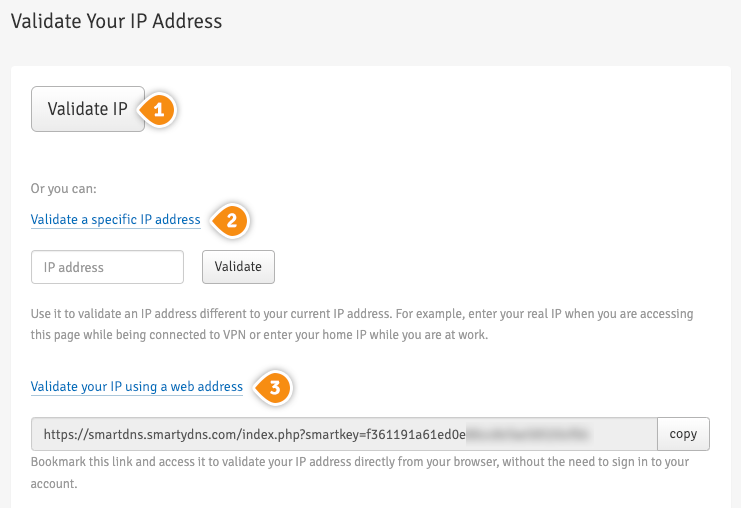
Another option is: validate your IP addresses instantly through “Validate IP Link” (2). By choosing this option you don’t have to sign in to your Client Area each time you want to validate the IP address. By adding this link to your browser favorites/bookmarks your IP address will be validated each time you load this URL into your browser.
Keep in mind! If our service is not functioning, please validate your IP address again by following steps 1-4. Your IP address have to be validated every time it changes.Important! It is important to not share the Validate IP Link with anyone! It is particular and unique for every single client. If you give or share it with other people, your Smart DNS service won’t be working.
-
Change your XBOX DNS server addresses
This has to be done only once.
Important! Before you switch to our DNS addresses, make sure you write down your current DNS addresses, so you can keep these numbers in case you need to get back to your original settings. If your original configuration were set to “Automatic”, just change your DNS settings back to “Automatic” in order to get back to your original settings.-
Go to “Settings” tab and click on “System” (3).

-
Choose “Network Settings” (4).

-
Choose your Wi-Fi network (5).

-
Go to “Configure Network” (6).

-
Choose “DNS Settings” (8) in the “Basic Settings” tab (7).

-
Change your “DNS Settings” to Manual (9).

-
Choose Primary DNS Server (10).

-
Enter SmartyDNS primary DNS Server address (11) and click “Done” (12). You can find it in your Client Area -> Packages -> your package.

-
Choose Secondary DNS Server and enter SmartyDNS secondary DNS Server address and click “Done”.
-
Press the “B” button on your controller, then choose “Test Xbox LIVE Connection” (13).

-
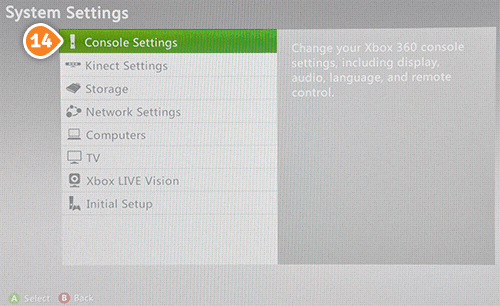
Change your location to “United States”. Go to “System Settings” > “Console Settings” (14).
-
Go to “Language and Locale” (15).

-
Go to “Locale” (16).

-
Choose “United States” (17).

-
Restart your XBOX and you are done.
-


